Add or remove seats
Owners and billing administrators change the number of seats on the team page, under Change the number of seats. The change applies to the existing subscription; there is no second purchase.
1Enter the new number of seats
Enter the total number of seats you want, not the difference, and select Review the change. Nothing changes yet.
2Review the price
Adding seats shows the amount Paddle charges now: the price of the new seats for the rest of the current period. It also shows the next renewal amount.
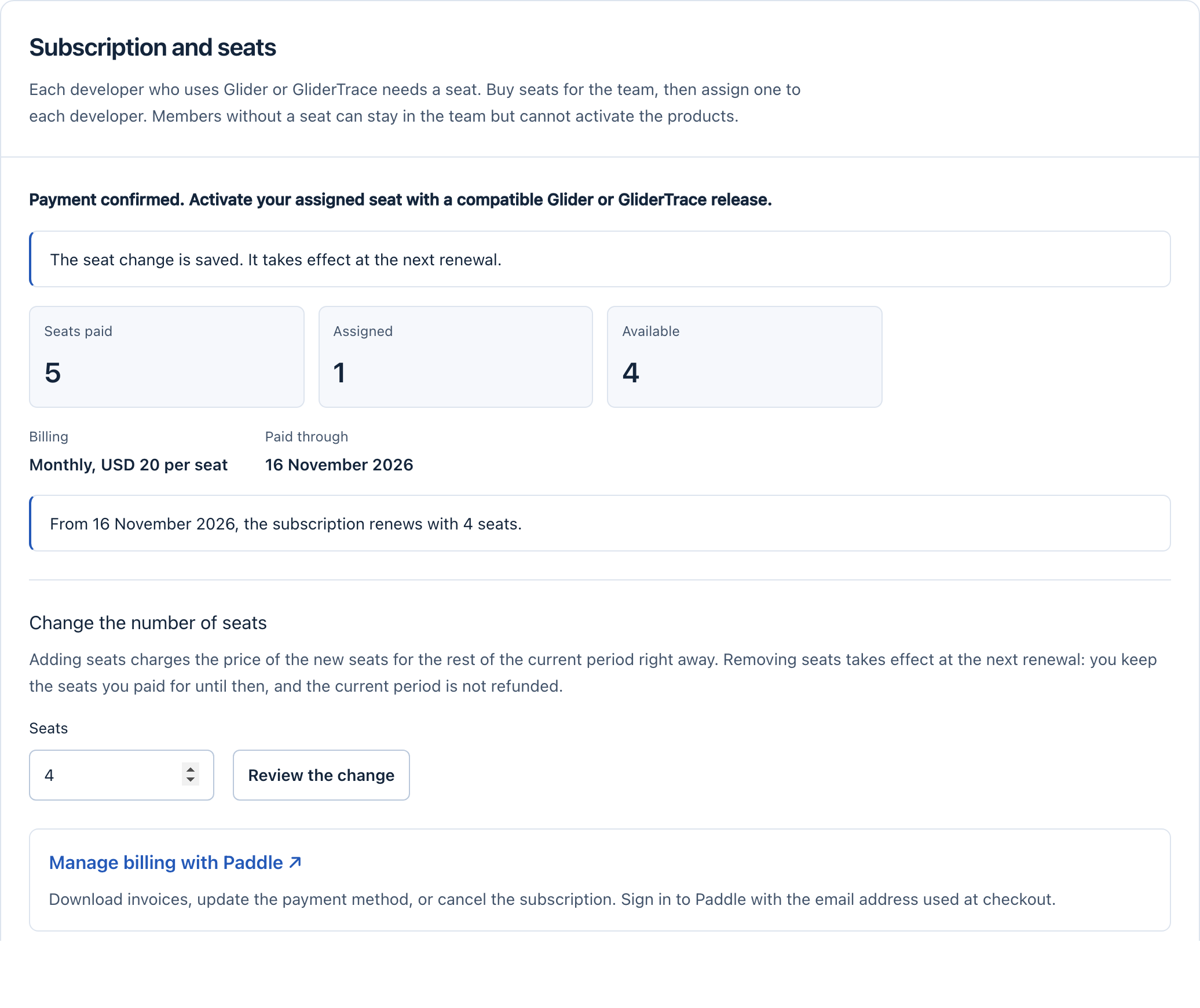
Removing seats shows that nothing is charged now and how many seats you keep until the end of the period.
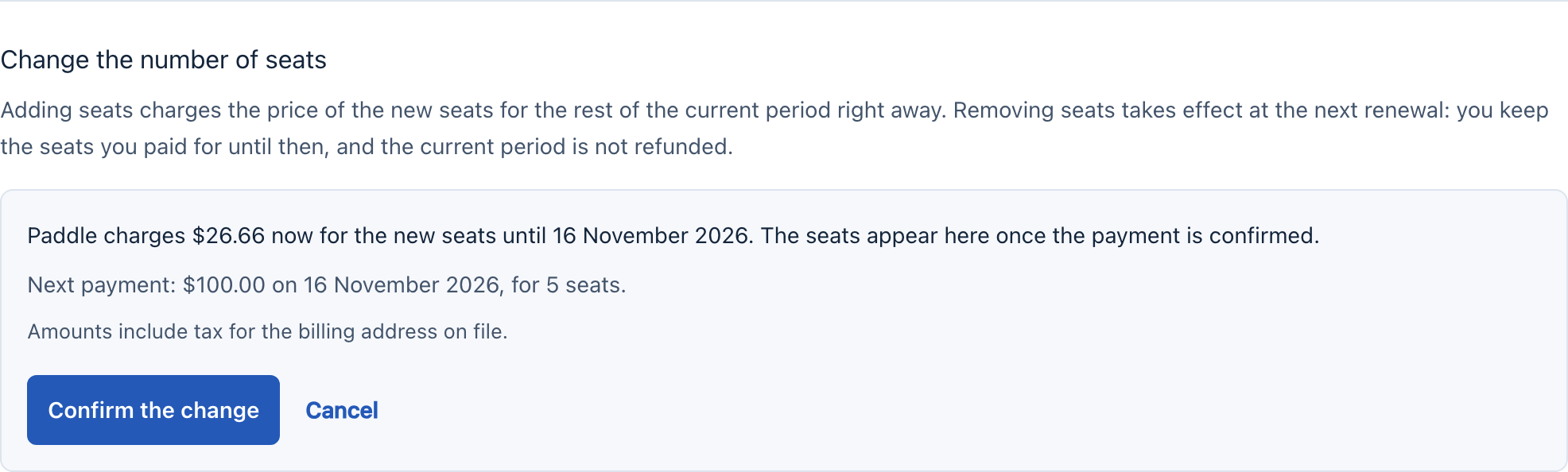
3Confirm
Select Confirm the change. Paddle charges the saved payment method at once for added seats. The seats appear as soon as Paddle confirms the payment, usually within a few minutes. If the payment fails, nothing changes.
For removed seats, the page shows the date from which the subscription renews with fewer seats. You keep every paid seat until then.
Rules
- You cannot remove seats that are assigned. Release them first under Members.
- A removal takes effect at the next renewal and is not refunded for the current period. Removed seats are not charged again.
- While a removal is waiting for the renewal, you can only undo it (go back to the paid number of seats) or remove more. To add seats beyond the paid number, undo the removal first.
- Seats cannot change during the 30 minutes before a renewal, while a payment is in progress, or after a failed payment. Update the payment method in Paddle and try again.
- A team can have up to 500 seats. To switch between monthly and annual billing, contact support.