Invite members and assign seats
Owners and administrators manage members and seats on the team page. Open it from Account with Manage next to the team.
1Invite a developer
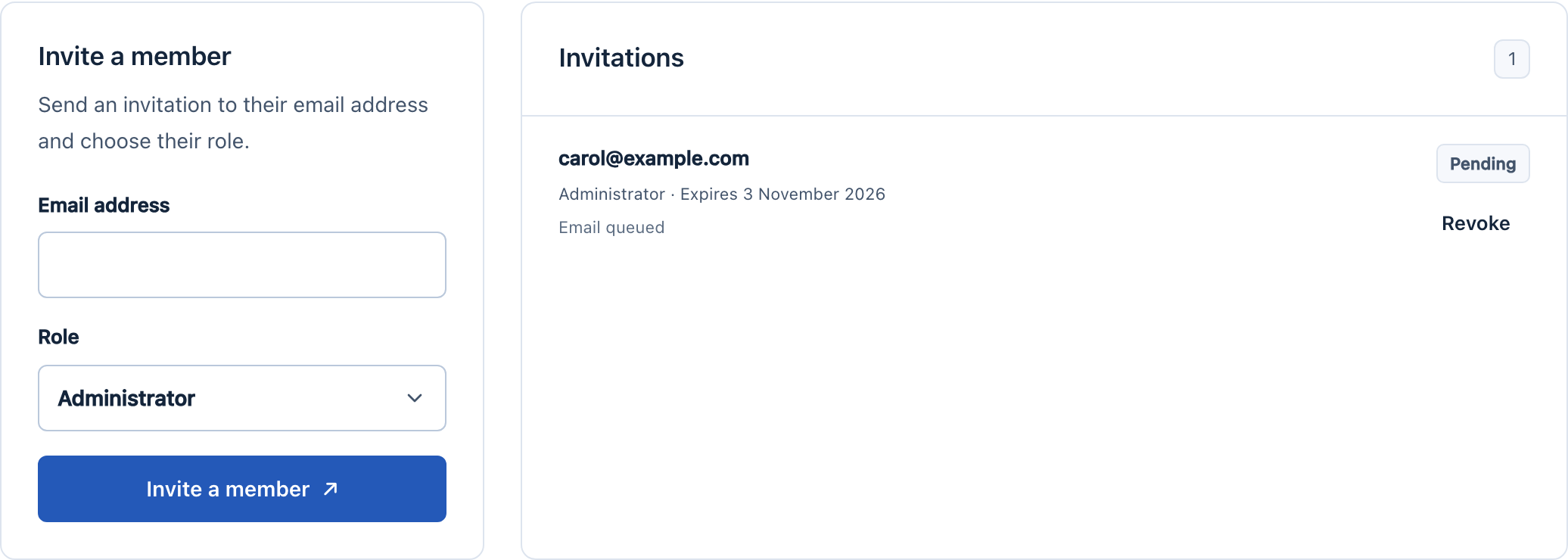
Under Invite a member, enter the developer’s work email, choose the Member role and select Invite a member. Invitations do not use seats.
The invitation email is valid for 7 days. Its status appears under Invitations, where you can also revoke it.
2The developer accepts
The developer opens the link in the email, signs in with that same email address and selects Accept invitation. They then appear under Members with No seat.
3Assign a seat
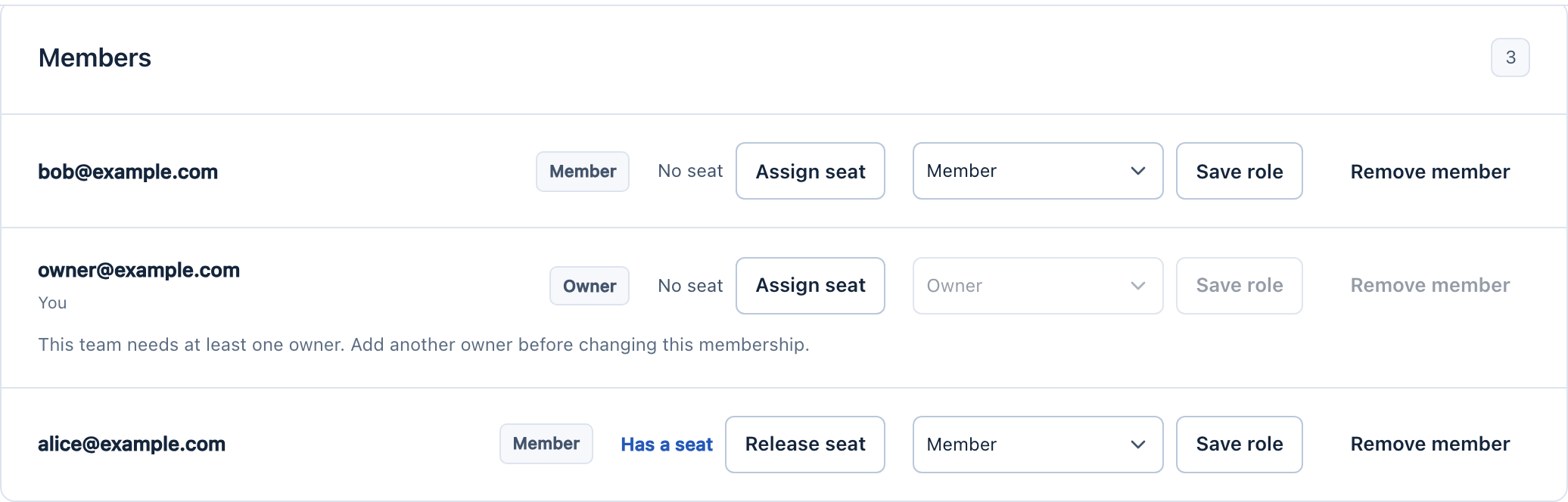
Under Members, select Assign seat next to the developer. The label changes to Has a seat and the seat counts update.
If Assign seat is unavailable, every paid seat is already assigned. Add seats first.
4The developer activates
The developer signs in once from Glider or GliderTrace and approves the device in the browser. Nothing else is needed from you.
5Move a seat or remove a member
To give a seat to someone else, select Release seat next to the current holder, then assign it to the new developer. To remove someone from the team, select Remove member; their seat is released too.
If the developer had already activated, the seat shows as Held until the current paid period ends. The products keep working offline for them until then, so the seat cannot go to someone else before that date.
Removing members does not change what you pay. To pay for fewer seats, remove seats.